Galaxy Z Fold 6 User Manual (User Guide) PDF The Samsung Galaxy Z Fold 6 is a revolutionary device that combines the power of a tablet and the convenience of a smartphone. To get the most out of this cutting-edge device, it’s crucial to understand its features, settings, and functionalities. This detailed user manual will guide you through every aspect of the Galaxy Z Fold 6, helping you master its capabilities.
Getting Started with the Galaxy Z Fold 6
When you first unbox your Galaxy Z Fold 6, you’ll find the device, a USB-C charging cable, a quick start guide, and a SIM ejector tool. Before turning it on, ensure the device is fully charged using the provided cable. To power on the Galaxy Z Fold 6, press and hold the side button until the Samsung logo appears on the screen.
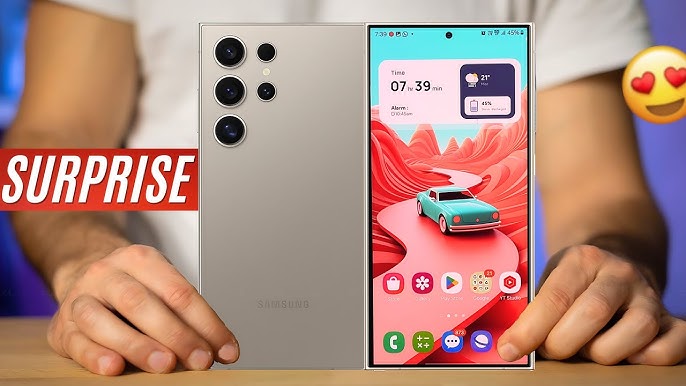
Setting Up Your Galaxy Z Fold 6
- Insert the SIM Card: Use the SIM ejector tool to open the SIM tray on the side of the device. Insert your SIM card and close the tray.
- Power On and Initial Setup: Follow the on-screen instructions to select your language, connect to a Wi-Fi network, and sign in to your Google account. If you have a previous Samsung device, you can use the Smart Switch feature to transfer data.
- Biometric Security Setup: Set up biometric security options such as fingerprint recognition and facial recognition to secure your device.
- Software Updates: Ensure your Galaxy Z Fold 6 is running the latest software by checking for updates in the settings menu.
Navigating the Galaxy Z Fold 6
The Galaxy Z Fold 6 features a foldable display, offering a unique user experience. The device can be used in two modes: Cover Screen Mode and Main Screen Mode.
- Cover Screen Mode: This mode allows you to use the Galaxy Z Fold 6 as a regular smartphone. The cover screen provides quick access to essential apps, notifications, and widgets.
- Main Screen Mode: When you unfold the device, you’ll access the expansive main screen. This mode is ideal for multitasking, watching videos, and using apps that benefit from a larger display.
Multitasking with the Galaxy Z Fold 6
One of the standout features of the Galaxy Z Fold 6 is its multitasking capability. With the large main screen, you can run up to three apps simultaneously in split-screen mode.
- Split Screen View: To enable split-screen mode, open an app, then swipe inward from the right edge of the screen to access the Edge Panel. Drag another app from the panel to the screen, and it will automatically enter split-screen mode.
- Pop-Up View: You can also run apps in pop-up view, allowing them to float above other apps. To do this, drag an app from the Edge Panel to the center of the screen.
Using the S Pen on Galaxy Z Fold 6
The S Pen is a powerful tool that enhances productivity on the Galaxy Z Fold 6. While the S Pen is an optional accessory, it’s highly recommended for users who want to take full advantage of the device’s large screen.
- Taking Notes: The S Pen is perfect for taking notes directly on the screen. You can quickly jot down ideas or create detailed notes using Samsung Notes.
- Air Actions: The S Pen also features Air Actions, allowing you to control certain functions of the Galaxy Z Fold 6 with gestures. For example, you can navigate through presentations, control media playback, and more.
Customizing Your Galaxy Z Fold 6
Customization is key to making the Galaxy Z Fold 6 your own. Here are some tips to personalize your device:
- Themes and Wallpapers: Samsung’s Galaxy Themes store offers a wide range of themes and wallpapers. You can choose from various designs to match your style.
- Widgets: Add widgets to your home screen to access information quickly. Popular widgets include weather updates, calendar events, and music controls.
- Edge Panels: Customize the Edge Panel with your most-used apps, contacts, and tools for easy access.
Managing Battery Life on Galaxy Z Fold 6
Battery management is crucial, especially for a device as powerful as the Galaxy Z Fold 6. Here’s how you can optimize battery life:
- Adaptive Battery: The Galaxy Z Fold 6 uses AI to learn your usage patterns and optimize battery performance. Ensure Adaptive Battery is enabled in the settings.
- Power Saving Mode: When your battery is running low, switch to Power Saving Mode to extend usage time. This mode limits background processes and reduces screen brightness.
- Charging Options: The Galaxy Z Fold 6 supports fast charging, wireless charging, and reverse wireless charging. Use the original Samsung charger for the best results.
Connectivity Features on Galaxy Z Fold 6
The Galaxy Z Fold 6 offers a variety of connectivity options to keep you connected wherever you go:
- 5G Connectivity: Enjoy blazing-fast internet speeds with 5G support. Whether you’re streaming videos, downloading files, or playing online games, 5G ensures a smooth experience.
- Wi-Fi 6E: The Galaxy Z Fold 6 supports Wi-Fi 6E, providing faster and more reliable connections in crowded networks.
- Bluetooth 5.2: Pair your Galaxy Z Fold 6 with wireless headphones, smartwatches, and other Bluetooth-enabled devices seamlessly.
Camera Capabilities of Galaxy Z Fold 6
The Galaxy Z Fold 6 is equipped with a versatile camera setup that includes multiple lenses for different scenarios:
- Main Camera: The main camera captures high-resolution photos with excellent detail and color accuracy.
- Ultra-Wide Camera: Capture more of the scene with the ultra-wide lens, perfect for landscape photography.
- Telephoto Camera: Zoom in on distant subjects with the telephoto lens, which offers optical zoom capabilities.
- Selfie Camera: The cover screen houses a high-quality selfie camera, ideal for video calls and self-portraits.
Camera Modes and Features
- Night Mode: Enhance your low-light photography with Night Mode, which reduces noise and brightens the scene.
- Pro Mode: For advanced users, Pro Mode offers manual controls over settings like ISO, shutter speed, and white balance.
- Director’s View: This mode lets you record video from multiple cameras simultaneously, allowing for creative compositions and seamless transitions between angles.
Software and Updates for Galaxy Z Fold 6
The Galaxy Z Fold 6 runs on Samsung’s One UI software, built on top of Android. This user interface is designed to take full advantage of the foldable display.
- One UI Features: The software offers features like Edge Panels, customizable Always-On Display, and enhanced privacy settings.
- Software Updates: Samsung regularly releases software updates that bring new features, security patches, and performance improvements. Ensure your device is set to automatically download updates.
Troubleshooting Common Issues on Galaxy Z Fold 6
Even with a device as advanced as the Galaxy Z Fold 6, you may encounter occasional issues. Here are some common problems and their solutions:
- Screen Flickering: If your screen flickers, try restarting the device. If the issue persists, check for software updates or reset the device settings.
- Battery Draining Fast: If you notice rapid battery drain, check the battery usage in the settings to identify any apps consuming excessive power. Consider uninstalling or restricting background activity for these apps.
- Connectivity Issues: If you experience Wi-Fi or Bluetooth connectivity issues, toggle Airplane Mode on and off to reset the connections. You can also try forgetting and reconnecting to Wi-Fi networks or re-pairing Bluetooth devices.
Conclusion: Mastering Your Galaxy Z Fold 6
The Samsung Galaxy Z Fold 6 is a powerful and versatile device that offers a unique user experience. By familiarizing yourself with its features, settings, and capabilities, you can make the most of this cutting-edge technology. Whether you’re a multitasker, a photography enthusiast, or a productivity pro, the Galaxy Z Fold 6 has something to offer everyone.
By following this user manual, you’ll be well on your way to mastering the Galaxy Z Fold 6 and unlocking its full potential.